

Creating a Google Workspace email alias lets one user receive messages sent to another address without paying for an extra user account. Google states that a user alias uses the same mailbox as the user’s primary address, supports up to 30 aliases per user, and can take up to 24 hours to fully start working, although it often works sooner.
This tutorial covers the full setup in Google Admin, how to send from the alias in Gmail, when to use a group instead, and the small tricks that help when the Proceed or save flow does not behave as expected.
What an Email Alias Does
- An email alias is an alternate address for an existing user, and messages sent to that alias arrive in the same mailbox as the primary address.
- The user still signs in with the primary Google Workspace address, not the alias.
- An alias is best when one person should receive the messages, for example support@, legal@, or billing@.
- If several people need to receive the same messages, a Google Group is usually a better fit than a user alias.
| Option | Best for | Key limit |
|---|---|---|
| User alias | One person receiving mail sent to another address | Belongs to one user only |
| Google Group | Multiple people receiving the same messages | Needs group setup and membership management |
| Shared inbox style workflow | Teams that need shared access and continuity | Not the same as a simple user alias |
Before You Start
- Make sure the target user already exists in Google Workspace.
- Confirm that the alias address is not already used by another user, group, or conflicting Google Workspace object.
- Use an admin account with permission to manage users. Google’s alias setup instructions are specifically for admins managing organization accounts.
- If you use more than one domain, decide which domain the alias should use before you start. Google supports aliases across verified domains in the account.
How to Create the Alias in Google Admin
- Sign in to the Google Admin console with an administrator account.
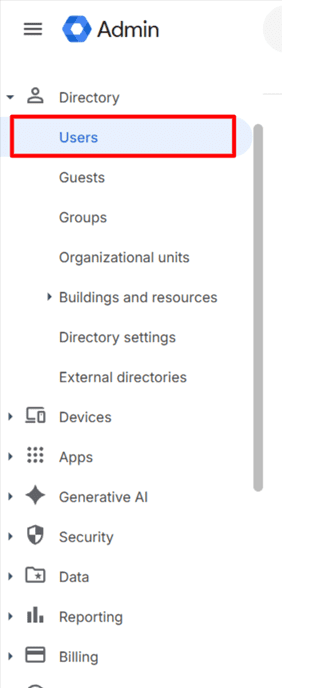
- Go to Directory, then Users.
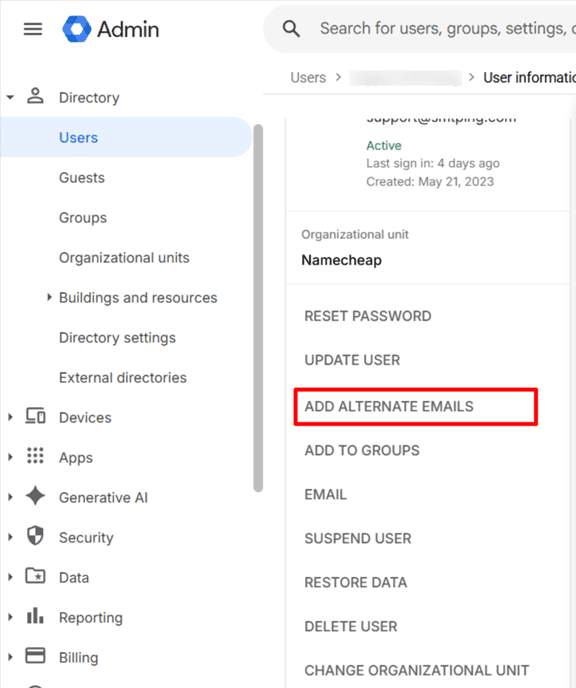
- Click the user who should receive the alias emails.
- Open Add alternate emails or the alias section on the user profile.
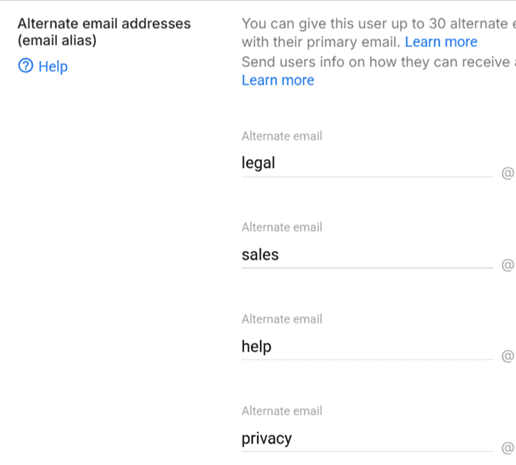
- Type the alias name. In this interface, Google typically expects the local part before the
@sign when the domain is already fixed by the UI. - If Google shows a domain selector, choose the correct domain. This matters when your Workspace account has multiple domains.
- Click Save and wait for the alias to apply. Google says changes can take up to 24 hours.
The Proceed Button Trick
- If the Proceed button stays disabled, the most common reason is that the alias string is not accepted yet by that screen, even if it looks valid. Google only allows a valid and available alias.
- Try entering only the part before
@if the domain already appears on the right side of the field. In many Google Admin flows, typing the full address in a local-part field will not work correctly. - Try a clearly unique test alias such as
legal-team,support-help, orbilling-test. If the new name works, the problem is the original alias being blocked or already used somewhere. - If you are in a shared inbox or group flow instead of the user alias flow, switch back to the user profile and add the alias there. Those are different setup paths and they do not behave the same way.
How to Send Emails from the Alias in Gmail
Receiving mail through the alias and sending mail from the alias are related but separate tasks. Google explains that users can send mail from an alias after adding it in Gmail under Send mail as.
- Sign in to Gmail as the user who owns the alias.
- Click Settings, then See all settings.
- Open the Accounts tab.
- In Send mail as, click Add another email address.
- Enter the display name and the full alias email address.
- Keep Treat as an alias checked unless you have a specific reason not to.
- Click through the verification step and confirm the alias. Google describes this as part of the normal send-as setup.
- Optionally enable the setting that replies come from the same address the message was sent to, which is helpful when one inbox uses several aliases.
Best Practices for Choosing the Alias
- Use role-based names that are easy to understand, such as
support,sales,billing, orlegal. - If a short generic term is blocked, try a scalable variation like
legal-team,support-eu, orbilling-ops. This is often the fastest way to avoid hidden naming conflicts. - Document which aliases belong to which users, because aliases are attached to one user and can become harder to track at scale.
- Use a group instead of a user alias if several people may need access later, for example vacations, coverage, or team growth.
Troubleshooting
- The alias will not save: try a different alias name first, because the current one may already exist or conflict with another object.
- The Proceed button is disabled: enter only the local part if the domain is already shown, and test a fresh alias to check whether the issue is the specific name.
- The alias receives mail but cannot send: complete the Gmail Send mail as setup for that user. Creating the alias in Admin alone does not finish outbound sending.
- The alias does not work immediately: wait for propagation. Google says alias changes can take up to 24 hours to fully apply.
- The team wants one shared address for multiple people: use a group or shared workflow instead of attaching the address to one user alias.
- The wrong setup screen is being used: add a user alias from the user profile, not from a shared inbox flow, if the goal is one extra address for one existing user.
FAQ
- How many aliases can one user have? Google says each user can have up to 30 aliases at no extra cost.
- Can users sign in with the alias? No, Google says users still sign in with their primary address.
- Can an alias use another verified domain? Yes, Google supports aliases on verified domains in the same Workspace account.
- Can two users share one alias? A user alias belongs to one user account, so if multiple people need the same address, a group is usually the right choice.
Quick Recap
- Create the alias from the user profile in Google Admin.
- Use only an available alias name and the correct domain.
- If the button is blocked, test a fresh alias and make sure you are in the right flow.
- Set up Send mail as in Gmail if the user also needs to send from that address.
- Use a group instead of a user alias when several people need the same mailbox behavior.
Did this guide save you time?
SMTPedia is free and independent. A coffee helps keep every guide accurate.
Buy SMTPedia a coffeeAbout the Author

Alaa · LinkedIn
Email infrastructure specialist with 8+ years of hands-on experience in SMTP, deliverability, and email verification. I’ve configured and troubleshot mail systems across Postfix, Exchange, and cloud relays, managed IP reputation and warmup campaigns, and built verification pipelines processing millions of addresses. My work spans DNS authentication (SPF, DKIM, DMARC, BIMI), bounce handling, blocklist monitoring, and compliance frameworks including CAN-SPAM and GDPR. I write every article on SMTPedia to give email professionals, developers, and marketers the accurate, RFC-grounded reference they need.
About SMTPedia
SMTPedia is an independent email industry reference covering SMTP, IMAP, POP3, email deliverability, marketing platforms, DNS authentication, and email verification. Every article is researched from official provider documentation, IETF RFCs, and industry best practices. Settings and configurations are verified quarterly.
We are cited as a source by ChatGPT, Microsoft Copilot, and thousands of email professionals worldwide. Learn more about our editorial process.